
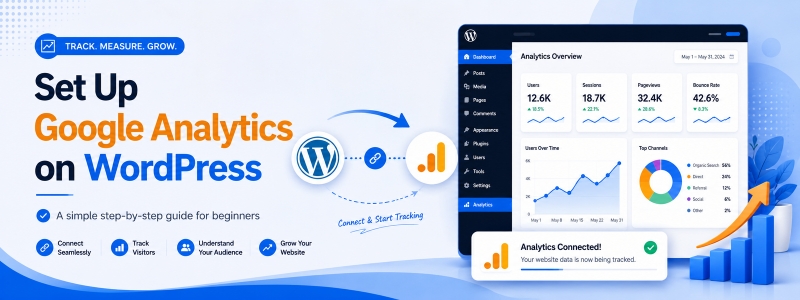
Getting Started with Google Analytics for WordPress
For anyone managing a website, grasping how visitors engage is vital. Google Analytics serves as a powerful and free tool offered by Google, providing rich insights into how users interact with your site. Whether you’re running a personal blog, managing a WooCommerce store, or working as a professional developer, monitoring your site’s metrics enables you to make data-driven decisions and consistently enhance the overall user experience.
In this step-by-step guide, we’ll walk you through everything you need — from creating a Google Analytics account to embedding the tracking code on your WordPress website — so you can start collecting meaningful data right away.
The Benefits of Using Google Analytics
- Comprehensive Audience Insights: Gain a deep understanding of who your visitors are, including their geographic location, device type, age range, interests, and how they found your website.
- Traffic Source Analysis: Find out whether your visitors are coming from organic search, social media, paid ads, direct links, or referrals — so you know which channels deserve your focus.
- Conversion Tracking: Set up goals to track meaningful user actions such as purchases, newsletter sign-ups, contact form submissions, or any other key conversion events on your site.
- SEO Optimization: Discover which pages and blog posts are getting the most traffic, how long people stay on them, and which ones have a high bounce rate — so you can continuously improve your content strategy.
- Real-Time Monitoring: See who is on your site right now, what pages they’re viewing, and where they’re located — all in real time.
- E-Commerce Tracking: If you run a WooCommerce store, Google Analytics lets you track revenue, product performance, and shopping behavior to optimize your sales funnel.
What You Need Before Setting Up Google Analytics
Before you get started, make sure you have the following ready:
- A Google account (Gmail) to log in to Google Analytics.
- Your WordPress website should be live and accessible on the internet.
- Admin access to your WordPress dashboard.
- Optionally, a plugin like Site Kit by Google or MonsterInsights if you prefer a no-code setup method.
Your Step-by-Step Guide to Setting Up Google Analytics on WordPress
There are two main ways to add Google Analytics to your WordPress site:
- Method 1: Using the Site Kit by Google plugin (recommended for beginners)
- Method 2: Manually adding the tracking code via your theme or a plugin
We’ll cover both methods in detail below.
Method 1: Using Site Kit by Google (Easiest Method)
Step 1: Set Up Your Google Analytics Account
- Go to analytics.google.com and sign in with your Google account.
- Click on “Start measuring” if you’re new, or click “+ Create” if you already have an account.
- Enter an Account Name (this can be your business or website name).
- Under Account Data Sharing Settings, choose your preferences and click Next.
- Enter a Property Name (usually your website name), select your reporting time zone and currency, then click Next.
- Fill in your business details such as industry category and business size, then click Next.
- Choose your business objective (e.g., Generate leads, Examine user behavior), then click Create.
- Accept the Google Analytics Terms of Service.
- On the next screen, choose Web as your platform.
- Enter your Website URL and a Stream Name, then click Create stream.
- You’ll now see your Measurement ID (looks like
G-XXXXXXXXXX). Copy it — you’ll need this later.
Step 2: Install the Site Kit by Google Plugin
- Log in to your WordPress Dashboard.
- Go to Plugins → Add New.
- In the search bar, type “Site Kit by Google”.
- Click Install Now and then Activate.
Step 3: Connect Site Kit to Your Google Account
- After activation, go to Site Kit in the left sidebar and click Start Setup.
- Click Sign in with Google and select the Google account linked to your Analytics.
- Grant the required permissions when prompted.
- Verify your site ownership and click Continue.
Step 4: Connect Google Analytics
- After setup, go to Site Kit → Settings.
- Click Connect More Services and select Analytics.
- Choose the Analytics account, property, and data stream you created earlier.
- Click Configure Analytics.
- Site Kit will automatically place the tracking code on every page of your WordPress site.
Method 2: Manually Adding the Google Analytics Tracking Code
If you prefer not to use a plugin, or want more control, you can manually add the GA4 tracking script to your WordPress theme.
Step 1: Get Your Measurement ID
- Log in to Google Analytics.
- Navigate to Admin → Data Streams.
- Click on your web stream and copy the Measurement ID (e.g.,
G-XXXXXXXXXX). - Also copy the full gtag.js tracking code snippet shown on that page.
Step 2: Add the Tracking Code to Your WordPress Theme
Option A: Using the Theme Customizer (No coding needed)
- Go to Appearance → Customize → Additional CSS — this is for CSS only, so skip to Option B for scripts.
Option B: Using a Header/Footer Plugin
- Install a plugin like Insert Headers and Footers or WPCode.
- Go to the plugin settings and paste your GA4
<script>snippet in the Header section. - Save the settings. The tracking code will now appear on every page automatically.
Option C: Editing the Theme’s functions.php (Advanced)
- Go to Appearance → Theme File Editor.
- Open functions.php.
- Add the following code at the end of the file, replacing
G-XXXXXXXXXXwith your actual Measurement ID:
function add_google_analytics() {
    echo '<script async src="https://www.googletagmanager.com/gtag/js?id=G-XXXXXXXXXX"></script>
    <script>
        window.dataLayer = window.dataLayer || [];
        function gtag(){dataLayer.push(arguments);}
        gtag("js", new Date());
        gtag("config", "G-XXXXXXXXXX");
    </script>';
}
add_action('wp_head', 'add_google_analytics');
Step 3: Verify That Google Analytics Is Working
After adding the tracking code, you should confirm it’s working correctly:
- Open your website in one browser tab.
- In another tab, go to your Google Analytics dashboard.
- Click on Reports → Realtime.
- If you see 1 active user (yourself), congratulations — Google Analytics is successfully tracking your WordPress site!
Alternatively, you can use the Google Tag Assistant Chrome extension to verify your setup without having to open a second browser tab.
Setting Up Goals and Conversions in Google Analytics 4
Once tracking is confirmed, the next step is to set up conversion events so you can measure what matters most on your site.
- In Google Analytics, go to Admin → Events.
- You’ll see automatically collected events like
page_view,scroll,click, andsession_start. - To mark an event as a conversion, toggle the “Mark as conversion” switch next to any event.
- For custom goals (like form submissions), you can create a new event using the Create event button and define your own parameters.
Connecting Google Search Console with Google Analytics
For even deeper SEO insights, link your Google Search Console property with your Analytics account:
- In Google Analytics, go to Admin → Product Links → Search Console Links.
- Click Link and select your Search Console property.
- Confirm and save the link.
Once linked, you can view Search Console data directly within your GA4 reports, including top queries, impressions, clicks, and average position.
Important Tips and Best Practices
- Exclude your own visits: Use a browser extension like Block Yourself from Analytics or set up IP filters in GA4 to exclude your own traffic from reports.
- Use UTM parameters: When sharing links on social media or in email campaigns, add UTM tags so GA4 can accurately attribute traffic sources.
- Enable Enhanced Measurement: In your GA4 data stream settings, turn on Enhanced Measurement to automatically track scrolls, outbound clicks, video views, and file downloads without any extra code.
- Set up audiences: Create custom audiences based on user behavior to use in Google Ads campaigns for remarketing.
- Regularly review your reports: Check your Analytics dashboard at least once a week to spot trends, identify top-performing content, and catch any sudden traffic drops.
Frequently Asked Questions (FAQs)
Q: Is Google Analytics free to use?
Yes, Google Analytics (GA4) is completely free for most websites. Google also offers a paid version called Google Analytics 360 for enterprise-level users with much higher data limits and additional features.
Q: How long does it take for data to appear in Google Analytics?
Real-time data is available immediately. However, standard reports may take 24 to 48 hours to fully populate after setup.
Q: Can I use Google Analytics on multiple websites?
Yes. You can add multiple properties (websites) under a single Google Analytics account, making it easy to manage analytics for all your sites from one dashboard.
Q: Will Google Analytics slow down my WordPress website?
The GA4 tracking script is loaded asynchronously, which means it has minimal impact on your site’s loading speed. However, if performance is a concern, tools like WP Rocket allow you to host the GA script locally for even faster loading.
Q: Is Google Analytics GDPR compliant?
By default, GA4 collects some personal data. To be GDPR compliant, you should implement a cookie consent banner, configure IP anonymization, and update your Privacy Policy. Plugins like Complianz or CookieYes can help you achieve this.
Conclusion
Setting up Google Analytics on your WordPress website is one of the smartest moves you can make as a site owner. With the right data at your fingertips, you can better understand your audience, improve your content, optimize your marketing, and ultimately grow your website more effectively.
Whether you go with the easy Site Kit by Google plugin method or manually add the tracking code yourself, the setup process is straightforward and takes only a few minutes. Start today and let the data guide your decisions!
If you found this guide helpful, explore more tutorials on Codersly to level up your WordPress skills.

Your sentences carry intention, producing reflective cadence. Each phrase fosters attentive reading, mindfulness, and engagement with emotional and intellectual layers.