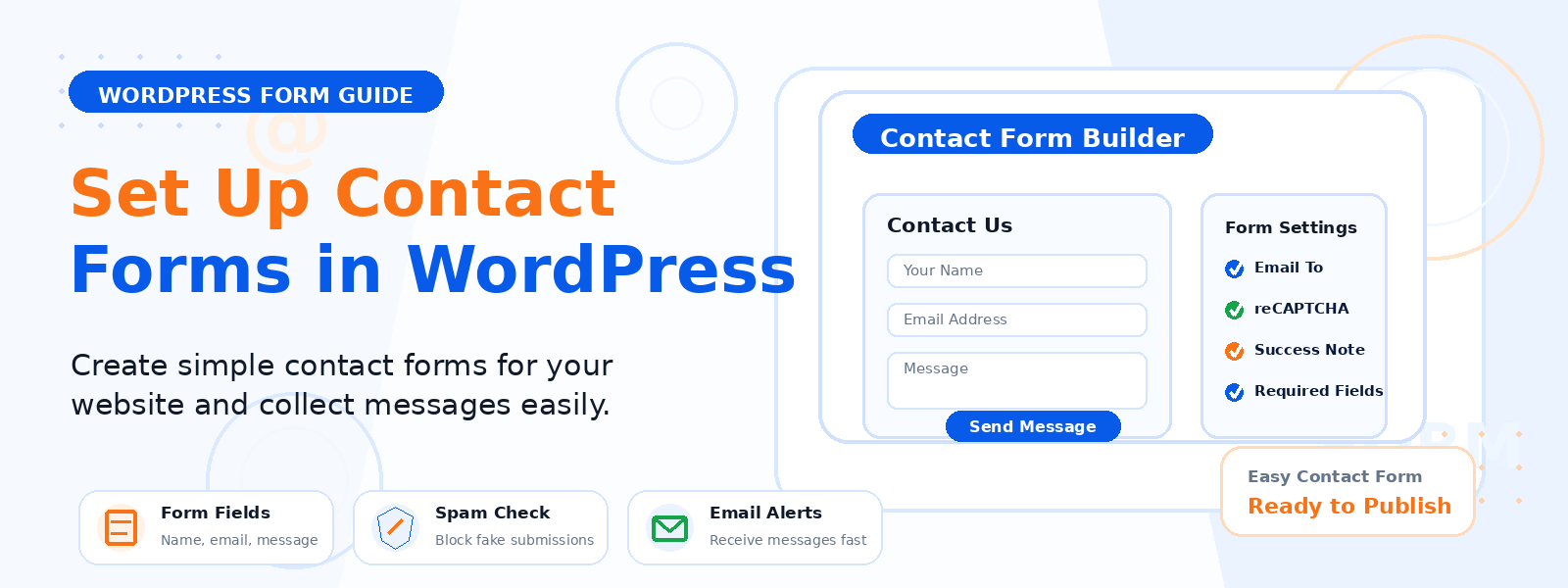
Contact forms are among the most important elements on any WordPress website — they’re the primary mechanism through which potential customers, clients, and readers reach out to you. A poorly configured contact form that delivers messages to the wrong email address, fails silently due to server configuration issues, or looks unprofessional can cost you valuable leads and opportunities without you ever realizing it.
In this step-by-step guide, we’ll walk through everything you need to configure your WordPress contact forms correctly — from choosing the right plugin to ensuring reliable email delivery and protecting against spam.
Step 1: Choose the Right Contact Form Plugin
WordPress doesn’t include a built-in contact form, so you’ll need a plugin. The most popular options include Contact Form 7 (free, highly flexible, requires some configuration), WPForms (beginner-friendly with a visual drag-and-drop builder, free lite version available), Gravity Forms (premium, feature-rich, ideal for complex forms), and Fluent Forms (growing alternative with a generous free tier). For most small to medium websites, WPForms Lite or Contact Form 7 with appropriate setup will handle contact form needs effectively.
Step 2: Install and Activate Your Chosen Plugin
Go to Plugins → Add New in your WordPress dashboard, search for your chosen contact form plugin, click Install Now, and then Activate. After activation, follow the plugin’s setup wizard if one is provided. Most contact form plugins automatically create a default contact form during installation, which you can customize or use as a starting point.
Step 3: Configure Your Form Fields
Keep your contact form as simple as possible while collecting the information you genuinely need. A basic contact form typically includes: Full Name (required), Email Address (required), Subject (optional but helpful for routing), and Message (required). Avoid adding unnecessary fields — every extra field reduces the percentage of visitors who will complete and submit the form. If you need to collect detailed information, consider using conditional logic to show additional fields only when relevant based on the visitor’s selections.
Step 4: Set Up Email Notifications
Configure where form submission notifications are sent. In your form plugin’s settings, specify the “To” email address where you want to receive notifications — this should be an actively monitored mailbox. Set a clear “Subject” line that helps you recognize contact form submissions in your inbox (e.g., “New Contact Form Message – [Site Name]”). Configure the email body to include all submitted form fields so you have all the information you need without having to log into WordPress to view the submission.
Step 5: Resolve Email Delivery Issues with SMTP
This is the most critical — and most commonly skipped — step in WordPress contact form configuration. By default, WordPress sends emails using the PHP mail() function, which is frequently blocked or marked as spam by email providers because it doesn’t properly authenticate the sender. Many WordPress site owners never realize their contact form is silently failing to deliver messages.
The solution is to configure SMTP (Simple Mail Transfer Protocol) email sending using a dedicated email delivery service. Install a plugin like WP Mail SMTP, enter your SMTP credentials from a transactional email service (SendGrid, Mailgun, SMTP.com, or even Gmail SMTP), and send a test email to verify that form notifications are being delivered reliably to your inbox and not to the spam folder.
Step 6: Add Spam Protection
Contact forms without spam protection will quickly become overwhelmed with automated spam submissions. Add at least one layer of spam protection: Google reCAPTCHA v3 (invisible, doesn’t require user interaction), a honeypot field (hidden from real users but filled in by bots), or Akismet integration if your form plugin supports it. Most contact form plugins have built-in reCAPTCHA support that you can enable with your reCAPTCHA API keys from the Google Developers Console.
Step 7: Create a Thank You Page
After a visitor submits your contact form, redirect them to a dedicated Thank You page rather than simply displaying an inline success message. A dedicated Thank You page allows you to: thank the visitor and set expectations for your response time, track form conversions as a Goal in Google Analytics, present related content or a secondary call to action, and reassure visitors that their message has been successfully received.
Step 8: Test Your Form Thoroughly
Before publishing your contact form, test it completely yourself. Submit a test message using a real email address and verify that: the submission succeeds without errors, the confirmation message or redirect works correctly, the notification email arrives in your inbox (not spam), and the notification email contains all the submitted information. Repeat this test from a mobile device to catch any mobile-specific issues.
Conclusion
A properly configured contact form is a straightforward but critical component of any professional WordPress website. By choosing the right plugin, configuring SMTP for reliable email delivery, adding spam protection, and testing thoroughly, you create a contact channel that works reliably and professionally — ensuring that no valuable inquiry from a potential customer is ever lost to technical failure.