
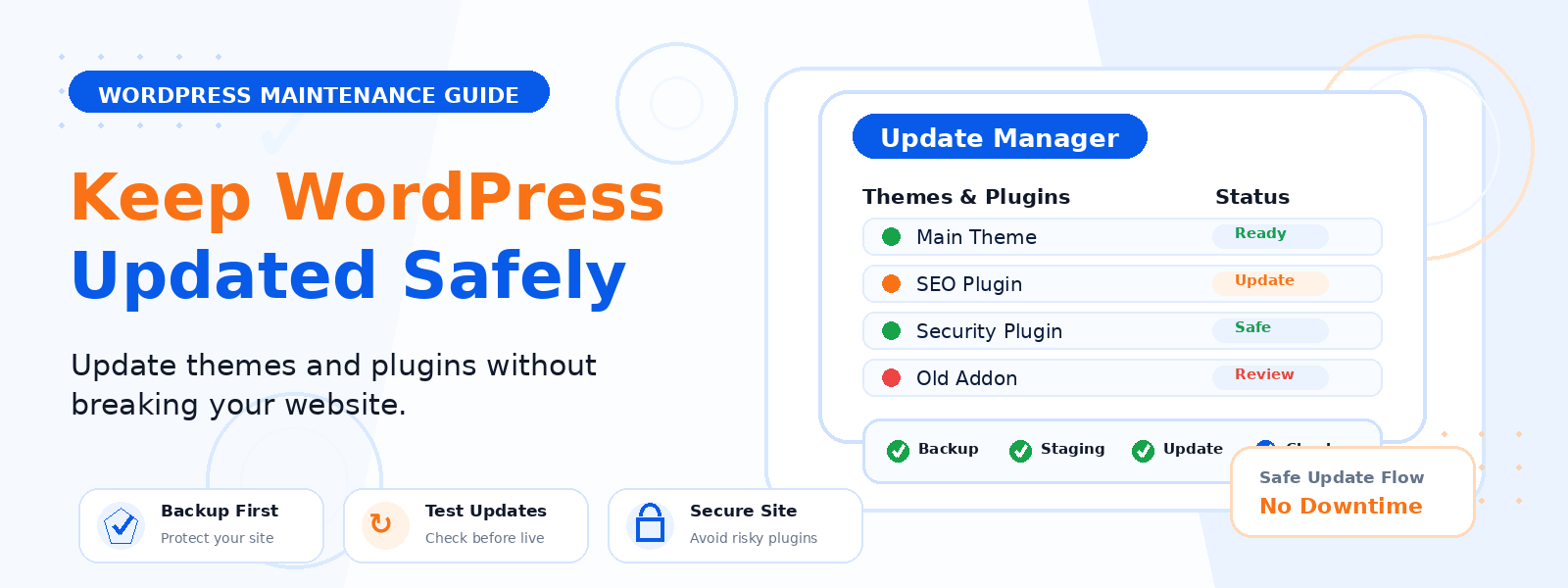
Keeping your WordPress themes and plugins updated is one of the most important maintenance tasks for any website owner. Updates contain bug fixes, security patches, performance improvements, and new features — and falling behind on updates leaves your site vulnerable to known security exploits and potential compatibility issues with new WordPress versions.
However, it’s equally important to apply updates carefully and safely. Poorly timed or untested updates can break functionality, cause plugin conflicts, or create visual issues that affect your visitors’ experience. In this guide, we’ll walk through the best practices for keeping your WordPress themes and plugins updated safely and confidently.
Why Staying Updated Matters
Outdated WordPress plugins and themes are one of the leading causes of WordPress security breaches. When a vulnerability is discovered in a popular plugin, security researchers typically report it to the developer first, who releases a patch. The vulnerability details are then published publicly — at which point attackers begin systematically exploiting sites that haven’t yet applied the update. This window between public disclosure and site owner update is when the most attacks occur.
Beyond security, updates often include performance improvements, bug fixes, and compatibility updates for new WordPress versions. Running significantly outdated plugins can result in broken functionality as WordPress evolves its core API and block editor capabilities.
Step 1: Create a Backup Before Every Update Session
Never apply plugin or theme updates without first creating a complete, verified backup of your WordPress site — both files and database. If an update breaks something, you need to be able to roll back quickly. A backup plugin like UpdraftPlus or BackWPup can create and upload a backup to cloud storage in just a few minutes. This is not optional — it’s the most important safety net in your update process.
Step 2: Review Update Changelogs
Before applying any update, especially major version updates, review the changelog to understand what changed. Plugin changelogs are accessible by clicking the version number in the updates notification or by visiting the plugin’s page on WordPress.org. Look for any changes that might affect your site’s configuration, notes about breaking changes or new requirements, and any known compatibility issues mentioned by other users in the support forum.
Step 3: Use a Staging Environment for Testing
For a production website that’s critical to your business, the safest approach is to test updates on a staging site first. A staging site is an exact copy of your live site running in a separate environment where you can safely apply and test updates before pushing them to production. Many managed WordPress hosts provide one-click staging environments. Alternatively, plugins like WP Staging make it easy to create a local staging copy.
Step 4: Update One Plugin at a Time
When multiple plugin updates are available, resist the temptation to apply them all at once with the “Update All” button. Instead, update one plugin at a time, then check your site’s frontend and key functionality after each update before proceeding to the next. This makes it much easier to identify which specific update caused a problem if something breaks, rather than having to diagnose among ten simultaneous updates.
Step 5: Test Key Site Functionality After Updates
After applying updates, always test the critical functionality of your site. Check your homepage, a blog post, your contact form, your checkout process (for WooCommerce sites), user login and registration, and any custom functionality that relies on the updated plugin or theme. If you notice anything broken or visually wrong, check whether the recently updated plugin or theme is the cause by temporarily deactivating it.
Configuring Automatic Updates Wisely
WordPress supports automatic updates for minor security releases (enabled by default and recommended), and you can also enable automatic updates for plugins and themes. Automatic plugin and theme updates are convenient but carry some risk — a poorly timed automatic update could break your site without your immediate awareness. If you enable automatic plugin updates, configure an uptime monitoring service that alerts you immediately if your site goes down after an automatic update.
Conclusion
Keeping your WordPress themes and plugins updated is a non-negotiable part of responsible website maintenance. By combining regular backups, careful changelog review, staged testing, and individual update application, you can maintain a secure, up-to-date WordPress installation with minimal risk of disruption to your site’s functionality. Build a monthly update review session into your website maintenance calendar and treat it as the critical business activity that it is.