
What Is an Image to Word Converter?
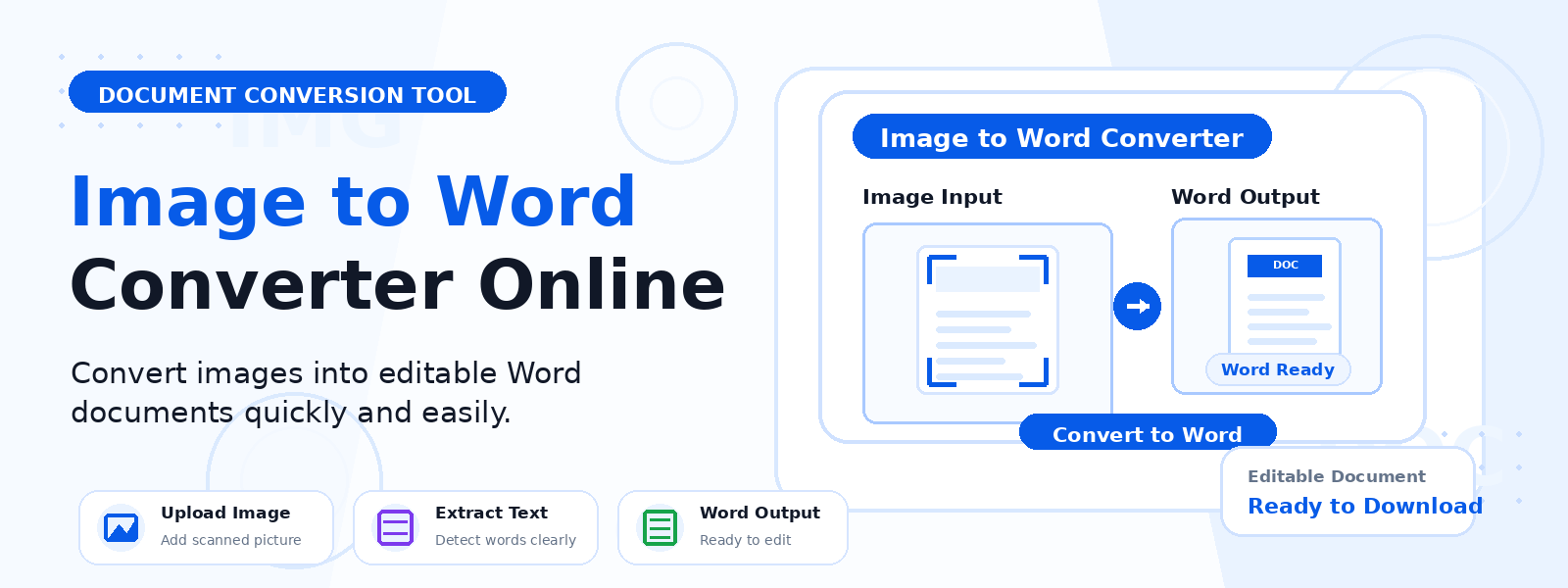
An image to Word converter is a free online tool that uses Optical Character Recognition (OCR) technology to extract text from image files and export it as a Microsoft Word DOCX document. Codersly’s Image to Word tool analyzes uploaded images, recognizes the text content, and formats it into an A4 Word-compatible DOCX file that you can download and edit in Microsoft Word, Google Docs, or any word processor.
How Does Image to Word Conversion Work?
The conversion process uses OCR (Optical Character Recognition) technology — a sophisticated algorithm that analyzes the pixels of an image to identify and extract text characters. Once the text is recognized, it is formatted into a Word document with standard A4 page layout, ready for editing, formatting, and further document work.
Common Use Cases for Image to Word Conversion
- Digitizing printed documents — convert scanned paper documents, contracts, or forms into editable Word files.
- Extracting text from screenshots — quickly pull text from interface screenshots or screen captures.
- Converting image-based PDFs — extract text from PDF pages that were saved as images.
- Repurposing content from photos — extract text from business cards, whiteboards, posters, or handwritten notes.
How to Use the Codersly Image to Word Converter
Using the Image to Word converter on Codersly is simple:
- Open the tool: Visit the Codersly Image to Word tool.
- Upload your image: Select a JPG, PNG, or other image file containing text.
- Extract text: The OCR engine processes the image and recognizes the text.
- Download DOCX: Download the exported Word document formatted as an A4 DOCX file.
What Image Formats Are Supported?
The tool supports popular image formats including JPEG, PNG, WebP, BMP, and TIFF. For best OCR results, use clear, high-resolution images with good contrast between the text and background.
Tips for Best OCR Results
- Use high-resolution images (at least 300 DPI for scanned documents).
- Ensure text is clearly visible with good contrast against the background.
- Avoid tilted or skewed images when possible.
- Use standard fonts in the source image for higher accuracy.
Frequently Asked Questions (FAQ)
Is the Image to Word converter free?
Yes. The tool is completely free to use with no registration required.
How accurate is the OCR text extraction?
OCR accuracy depends on the clarity and quality of the image. For clear, printed text in good-quality images, accuracy is very high. Handwritten text or stylized fonts may have lower accuracy.
Can I edit the output Word document?
Yes. The downloaded DOCX file is a fully editable Word document that you can open and modify in Microsoft Word, Google Docs, LibreOffice, or any compatible word processor.
Related Tools
Also try the OCR Scanner to extract plain text from images, or the PDF to Word converter to extract text from PDF files.
Extract Text from Images Now
Turn your image content into editable text with the free Image to Word Converter on Codersly. Upload your image and download a ready-to-edit Word document in seconds.