
Introduction
Elementor is one of the most popular page builder plugins for WordPress, and it is easy to see why. It gives you a visual, drag-and-drop way to build pages without needing to write code. With Elementor, you can create landing pages, business websites, portfolios, blog layouts, and even online store pages with more control over design and layout.
If you want to build a website that looks polished and professional, Elementor can help you get there faster. In this guide, you will learn what Elementor is, how it works, and how to use it to design beautiful websites step by step.
What Is Elementor?
Elementor is a visual page builder plugin for WordPress. Instead of relying only on the default editor, it lets you edit your site on the front end and see changes in real time. You can drag widgets into place, adjust spacing, change colors, and preview your layout as you build it.
This makes Elementor a great choice for beginners and site owners who want more design freedom without hiring a developer for every small change.
Main benefits of Elementor
- Easy drag-and-drop editing
- Live preview while you design
- Large widget library for content and layout
- Template kits and pre-designed sections
- Responsive controls for desktop, tablet, and mobile
- Compatibility with many WordPress themes and plugins
There is a free version with useful core features, and Elementor Pro adds advanced tools like theme building, popup creation, and more design flexibility.
Installing and Activating Elementor
To start using Elementor, you only need a WordPress website.
- Go to your WordPress dashboard.
- Click Plugins → Add New.
- Search for Elementor.
- Click Install Now, then Activate.
After activation, you will see an Edit with Elementor button when editing a page or post. That button opens the visual editor so you can begin designing immediately.
Understanding the Elementor Interface
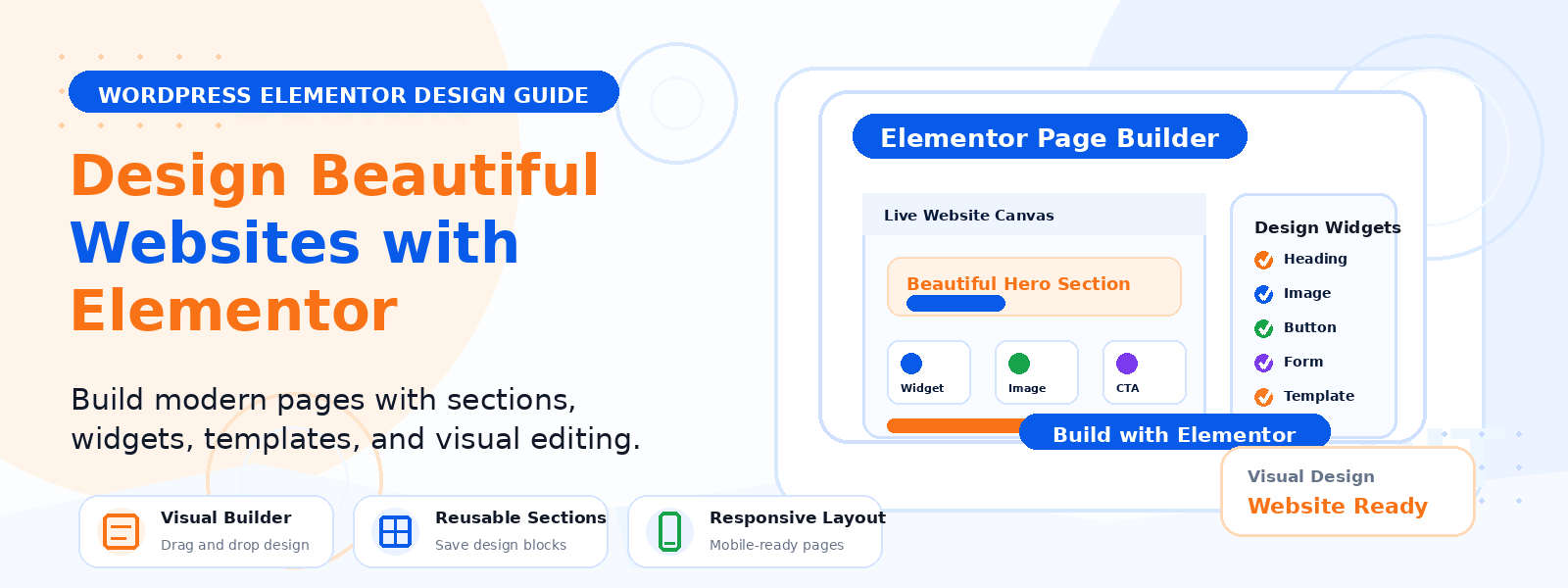
When you open the Elementor editor, the screen is split into two main areas.
- Left panel — Contains widgets, layout controls, styling options, and advanced settings.
- Right canvas — Shows the live preview of your page as you edit it.
Elementor layouts are usually built with three basic parts:
- Sections — The main containers that hold content across the page.
- Columns — Layout divisions inside sections that help arrange content side by side.
- Widgets — Content elements such as headings, images, buttons, forms, icons, and more.
Once you understand these building blocks, it becomes much easier to create pages that look balanced and professional.
How to Create Your First Page with Elementor
Creating a page with Elementor follows a simple workflow.
- Go to Pages → Add New in WordPress.
- Give the page a title, such as Home, About, or Services.
- Click Edit with Elementor.
Inside the editor, you can start building your layout:
- Click the + icon to add a new section.
- Select a structure, such as one column or two columns.
- Drag in a Heading widget for your main message.
- Add a Text Editor widget for supporting copy.
- Insert a Button widget for your call to action.
From there, you can adjust typography, spacing, alignment, and colors using the Style and Advanced tabs in the left panel.
Using Templates and Blocks
One of the biggest advantages of Elementor is its template library. Instead of starting from a blank page, you can begin with a ready-made layout and customize it to fit your brand.
Elementor templates usually come in two forms:
- Full page templates — Complete designs for pages like home, contact, about, or sales pages.
- Blocks — Smaller pre-designed sections such as hero areas, testimonials, FAQs, pricing tables, or footers.
To use a template, click the folder icon inside the editor, browse the library, and insert a layout that fits your goal. Then replace the text, images, and colors with your own branding.
This is especially helpful if you want to move quickly while still creating a custom-looking site.
Styling with Global Settings
If you want your website to look consistent, global settings are important. Elementor lets you define site-wide styles so your pages match each other more easily.
- Global colors for your brand palette
- Global typography for headings and body text
You can set these values in Site Settings inside the Elementor editor. Once they are in place, your widgets will usually follow those styles automatically unless you override them on a specific element.
Using global styles saves time and helps your site feel unified across pages.
How to Make Elementor Designs Look Better
Beautiful design is not only about adding more elements. It is also about using space, hierarchy, and consistency well. Here are a few simple ways to improve your Elementor pages.
- Keep sections clean — Do not overcrowd the page with too many widgets.
- Use strong headings — Make the main message easy to scan.
- Limit your color palette — Use a few brand colors instead of too many competing shades.
- Use consistent spacing — Padding and margin should feel balanced from section to section.
- Choose readable fonts — Simple typography often looks more professional than overly decorative fonts.
- Add clear call-to-action buttons — Guide users to the next step.
These small choices can make a big difference in how polished your website feels.
Responsive Design with Elementor
A website should look good on desktop, tablet, and mobile. Elementor includes responsive controls that make this much easier.
For many settings, you will see device icons that let you adjust values separately for desktop, tablet, and mobile. That means you can fine-tune font sizes, spacing, and alignment for different screen sizes.
Useful responsive actions
- Change font sizes for smaller screens
- Adjust column widths for mobile layouts
- Hide specific sections on certain devices when needed
- Preview your design in mobile and tablet modes before publishing
Testing on multiple devices is one of the easiest ways to avoid layout issues after your page goes live.
Working with Elementor Pro
The free version of Elementor is powerful, but Elementor Pro unlocks tools that are especially useful for full website design.
Popular Pro features
- Theme Builder — Design your header, footer, single post layout, archive pages, and WooCommerce templates.
- Popup Builder — Create popups for signups, promotions, or announcements.
- Advanced widgets — Access forms, price tables, sliders, call-to-action blocks, and more.
- Dynamic content — Pull data from custom fields and connect with advanced site structures.
If you are building a business website, a content-rich blog, or an online store, Elementor Pro can save time and give you more control over the entire design system.
Best Practices for Using Elementor
To get the best results, it helps to follow a few practical design habits.
- Use a lightweight, compatible theme — Choose a theme that works well with Elementor and keeps the layout flexible.
- Optimize images — Large image files can slow down page loading.
- Avoid unnecessary widgets — Simple layouts are often faster and easier to understand.
- Save reusable sections — Templates and global sections make future edits easier.
- Test before publishing — Check your pages on different browsers and screen sizes.
These best practices help you build a website that not only looks good, but also performs well and remains easy to manage.
Where Elementor Fits Into a WordPress Website
For many WordPress users, Elementor is the tool that bridges the gap between basic content editing and full visual design. It works especially well when you want to create custom pages without changing code.
That makes it a strong choice for:
- Business homepages
- Landing pages
- Portfolio websites
- Service pages
- Blog layouts
- Product and sales pages
If you are looking for WordPress themes or plugins to support your site-building workflow, Codersly offers premium WordPress themes and plugins designed to help you build more efficiently.
Conclusion
Elementor makes it possible to design beautiful websites in WordPress without needing advanced coding skills. With its drag-and-drop interface, template library, responsive controls, and flexible styling options, you can build pages that look professional and feel easy to use.
Start with the basics: learn sections, columns, and widgets. Then explore templates, global styling, and responsive adjustments. As your confidence grows, you can go further with Elementor Pro and take control of more parts of your site design.
Whether you are creating a simple business page or a full website, Elementor gives you the tools to design with confidence.