
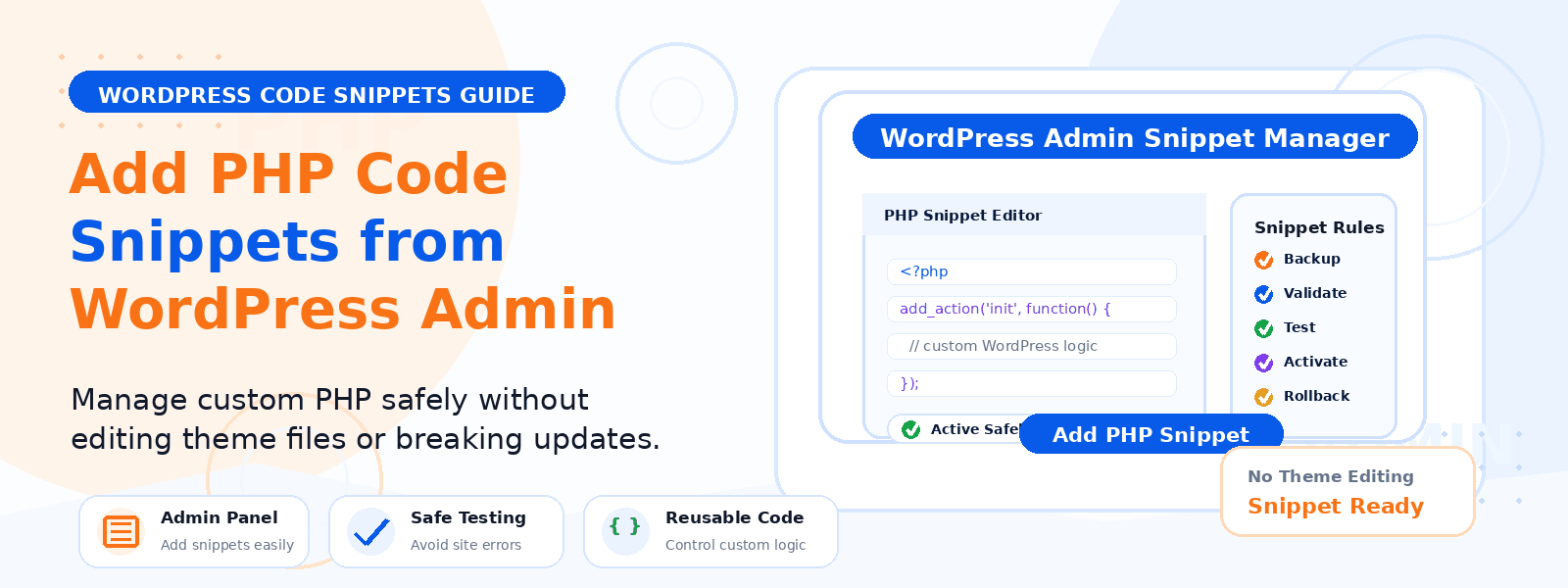
Adding custom PHP code to a WordPress website can be useful for small feature changes, quick fixes, and lightweight customizations. But editing your theme’s functions.php file directly is not always the safest option. A better approach is to manage PHP snippets from your WordPress admin dashboard in a cleaner and more organized way.
Why Avoid Editing functions.php Directly?
Many WordPress users add code directly inside functions.php, but this method comes with risks. A small mistake in the code can break the website, create a white screen error, or make future maintenance harder.
It also becomes difficult to manage multiple customizations when all changes are placed inside one file. That is why using a snippet manager from the WordPress admin panel is often a safer and more practical solution.
The Safer Way: Use a Dedicated PHP Snippet Manager
The safest way to add PHP code snippets is by using a dedicated WordPress snippet manager plugin. This lets you create, organize, edit, enable, or disable custom PHP functions without opening core theme files.
For site owners who want a more structured workflow, this approach is easier to maintain and less risky than manual file edits. It is especially helpful when you need to manage multiple snippets over time.
Benefits of managing snippets from the admin area
- No need to edit
functions.phpmanually - Cleaner and more organized workflow
- Easy enable or disable control
- Safer management of small custom functions
- Better for developers, freelancers, agencies, and site owners
Steps to Add PHP Code Snippets Safely
1. Use a dedicated snippet plugin
Start by installing a reliable snippet manager plugin from your WordPress admin dashboard. This gives you a central place to store custom code and helps reduce the chance of editing the wrong theme file.
2. Add only tested PHP code
Before saving any PHP snippet, make sure the code is tested and suitable for your current WordPress setup. Even a small syntax mistake can cause problems, so it is always better to use clean and verified code.
3. Start with small customizations
If you are new to PHP snippets, begin with simple changes such as adding a small custom function or modifying a WordPress behavior in a limited way. This reduces risk and makes troubleshooting easier if something does not work as expected.
4. Keep snippets organized
One of the biggest advantages of managing snippets from the admin panel is organization. You can keep each PHP function separate, review them later, and avoid mixing many unrelated customizations in one file.
5. Enable or disable snippets easily
A good snippet manager lets you turn snippets on or off instantly. This is much safer than deleting code manually from theme files because you can quickly disable a problematic snippet without losing your saved work.
6. Avoid theme dependency
When you place custom code inside a theme file, those changes may disappear if you switch themes later. Managing PHP snippets separately from the theme helps keep your custom functions more flexible and easier to maintain.
Who Is This Useful For?
This method is useful for WordPress developers, freelancers, agencies, and website owners who want a simple way to add custom functionality without touching theme files directly. It is especially helpful for users who want more control but prefer a cleaner dashboard-based workflow.
A Smarter Way to Manage Custom Functions
Instead of relying on direct file edits, a dedicated plugin like Codersly Snippets can help you add and manage PHP code in a more structured way. You can create snippets from your WordPress admin panel, keep them organized, and manage changes more confidently.
This makes the workflow faster, safer, and easier for long-term website maintenance.
Best Practices Before You Save a Snippet
- Back up your site before adding new code
- Test snippets on a staging site when possible
- Use clear labels for every snippet
- Only keep code you understand and actually need
- Disable unused snippets to keep your site cleaner
Conclusion
If you want to add custom PHP code in WordPress safely, managing snippets from the admin dashboard is a much better option than editing functions.php directly. It keeps your website cleaner, reduces risk, and gives you better control over your custom functions.
For a more organized workflow, tools like Codersly Snippets can help you manage code from the WordPress admin with greater confidence.