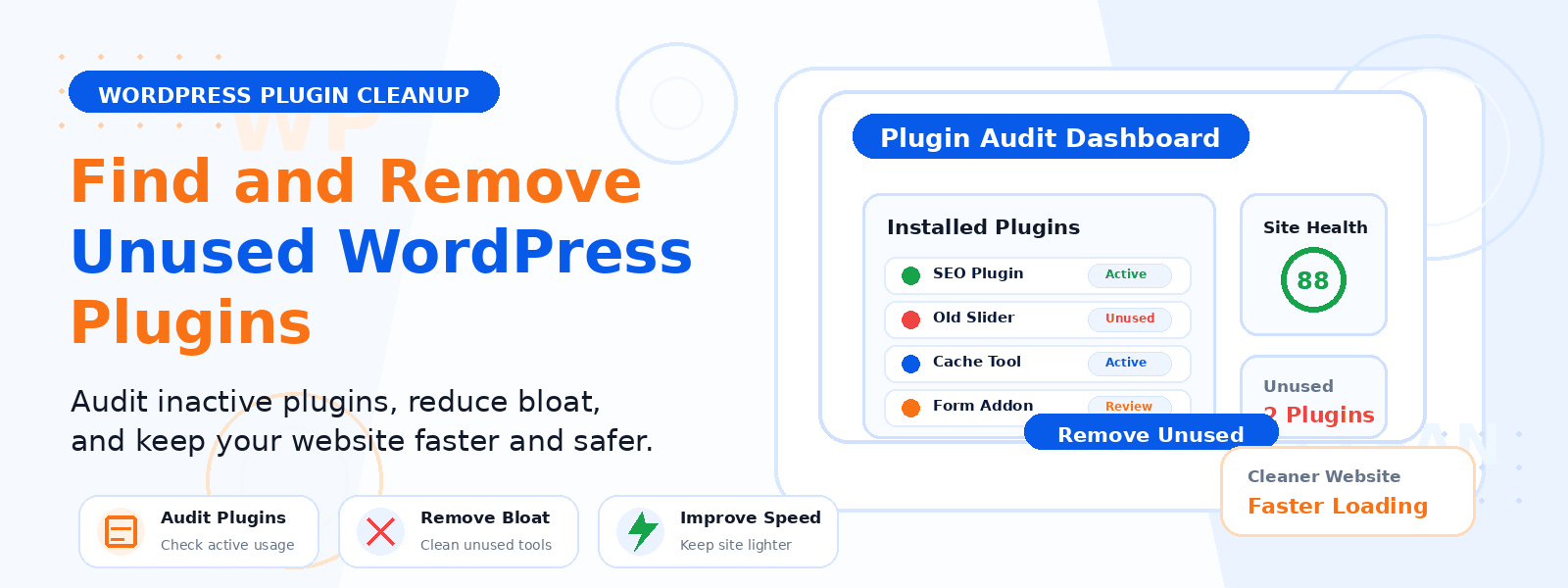
WordPress plugins are the engine that powers most site functionality — from SEO and security to contact forms and eCommerce. But over time, it’s easy for your plugin library to grow uncontrollably: you install a plugin to test it, forget to remove it, or keep old plugins that have been replaced by better alternatives. This plugin bloat silently degrades your site’s performance, creates security vulnerabilities, and makes your WordPress installation harder to maintain.
In this guide, we’ll walk through a systematic process for auditing your WordPress plugin library, identifying genuinely unused plugins, and safely removing them to keep your site lean, fast, and secure.
Why Unused Plugins Are a Problem
Even deactivated plugins consume server space and can pose security risks if they contain unpatched vulnerabilities. Active but unused plugins add unnecessary code to every page load, increasing database queries and slowing down both the frontend and admin dashboard. Plugin conflicts become more likely as your library grows — the more plugins you have, the higher the probability that two will interfere with each other. Regular plugin audits are an essential part of WordPress site maintenance.
Step 1: Audit Your Current Plugin List
Go to Plugins → Installed Plugins in your WordPress dashboard and review every plugin on the list. For each plugin, ask yourself: Is this plugin currently active and serving a visible function on my site? When did I last use or need this plugin? Is this plugin duplicating functionality that’s already provided by another plugin or my theme? Could this functionality be handled natively by WordPress or WooCommerce without a plugin?
Step 2: Categorize Your Plugins
Sort your plugins into three categories: essential (actively used and providing core functionality), optional (currently active but could be removed without significant impact), and unused (deactivated or forgotten). Be honest in this categorization — many site owners discover they have multiple plugins doing similar things (two caching plugins, two SEO plugins, or two contact form plugins) when only one is actually in use.
Step 3: Check Plugin Usage with Analytics Data
Some plugins add shortcodes, widgets, or blocks to your pages that may not be immediately obvious to remove. Before deleting any plugin, do a quick search of your posts and pages for shortcodes or elements generated by that plugin. In Google Analytics (or another analytics tool), check whether any pages that use the plugin’s features are receiving significant traffic — this helps you avoid accidentally removing functionality that’s delivering value to visitors.
Step 4: Back Up Your Site Before Deleting Plugins
Before removing any plugins, create a complete backup of your WordPress site including both files and the database. This protects you if deleting a plugin unexpectedly breaks something — even a plugin that appears unused may have left database entries or settings that other plugins depend on. A backup plugin like UpdraftPlus or BackWPup makes this process fast and straightforward.
Step 5: Deactivate Before Deleting
Always deactivate a plugin before deleting it. After deactivating, check your site’s frontend carefully — visit your homepage, a few representative pages, and run through any key user flows (checkout, contact form submission, user login) to verify that nothing is broken. If everything looks fine after 24–48 hours of deactivated status, you can safely proceed to delete the plugin from the Plugins page.
Step 6: Clean Up Plugin Database Tables
Deleting a plugin through the WordPress dashboard removes its files, but many plugins leave behind orphaned database tables and options entries. Over time, these accumulate and bloat your WordPress database. Plugins like WP-Optimize or Advanced Database Cleaner can identify and safely remove these leftover database entries, keeping your database clean and performing optimally.
How Often Should You Audit Your Plugins?
A thorough plugin audit should be conducted at least every 6 months, or whenever you’re experiencing unexplained slowdowns or errors on your site. Additionally, make it a habit to immediately remove plugins after testing them rather than leaving them deactivated indefinitely. The goal is to maintain a lean plugin stack where every installed plugin is earning its place by providing genuine, ongoing value.
Conclusion
Regular plugin auditing and cleanup is one of the simplest and most effective ways to improve your WordPress site’s performance, security, and maintainability. By systematically identifying truly unused plugins, backing up before making changes, and cleaning up database leftovers after deletion, you can keep your site lean and running at its best without sacrificing functionality.