
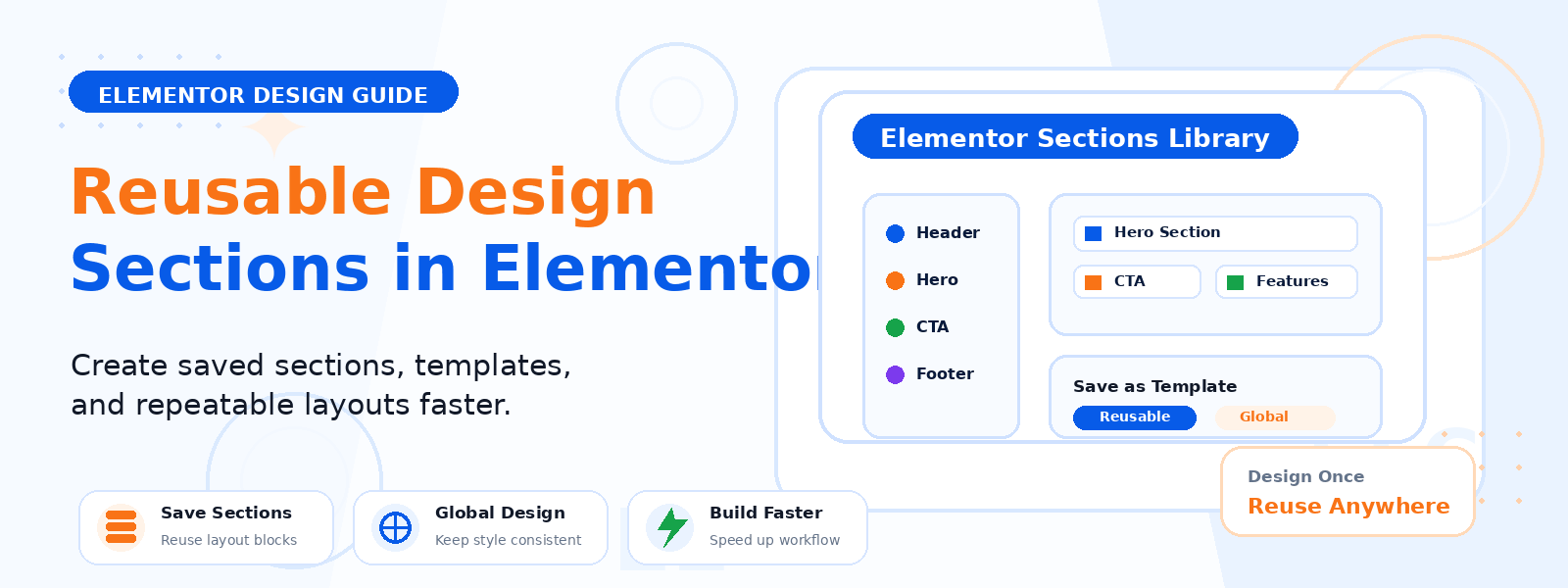
One of the most powerful but underutilized features in Elementor is the ability to save page sections and blocks as reusable templates. Instead of rebuilding the same pricing table, testimonial section, call-to-action block, or header design from scratch every time you create a new page, you can save it once and reuse it across your entire website with just a few clicks.
This capability — called Global Sections, Saved Sections, or Reusable Templates depending on your version of Elementor — can dramatically reduce the time it takes to build new pages, ensure brand consistency across your site, and make site-wide design updates much faster and easier.
Types of Reusable Design Elements in Elementor
Elementor offers several different types of reusable design elements, each suited to different use cases:
- Saved Sections: A single section with its columns and widgets saved as a template. Useful for repeating content blocks like testimonial carousels, team member grids, or feature highlight rows.
- Saved Pages (Page Templates): An entire page layout saved as a template. Useful for creating multiple pages with the same structure (e.g., service pages, product detail pages, or landing pages).
- Global Widgets (Elementor Pro): A widget that’s synchronized across all instances — if you update the global widget in one place, it automatically updates everywhere it appears on your site. Ideal for elements like headers, footers, and promotional banners.
Step 1: Build the Section You Want to Save
Start by designing your section in the Elementor editor as you normally would. Add your columns, widgets, styling, typography, colors, and any other design elements. Make sure the section looks exactly how you want it to appear when it’s reused — this is the “master” version that all future instances will be based on. Pay attention to spacing, mobile responsiveness, and any dynamic content or links that may need to be customized for each page where it’s reused.
Step 2: Save the Section as a Template
Once your section is complete, right-click on the section handle (the solid blue bar on the left side of the section) to open the context menu. Select “Save as Template” from the options. Give your template a clear, descriptive name that will help you identify it in the future (e.g., “Testimonial Carousel – Blue Theme” or “Pricing Table – 3 Tiers”). Click Save. Your section is now stored in the Elementor Template Library and can be accessed from any page on your WordPress site.
Step 3: Insert a Saved Section on Another Page
To use your saved section on a new or existing page, open that page in the Elementor editor and click the folder icon at the top of the left panel to open the Template Library. Navigate to the “My Templates” tab and locate your saved section. Click the Insert button next to it. The section will be inserted into the page exactly as it was designed. You can then move it to the desired position using drag and drop and customize any text, links, or images that should be unique to that page.
Step 4: Manage Your Template Library
As you save more sections and page templates, organization becomes important. Access your full template library through WordPress Dashboard → Templates → Saved Templates. Here you can rename templates, delete outdated ones, export templates as JSON files (for backup or transfer to another site), and import templates from other Elementor sites. Keeping your template library organized with clear naming conventions will save you time as your collection grows.
Using Global Widgets for Synchronized Updates (Elementor Pro)
If you have Elementor Pro, Global Widgets take reusability a step further. When you convert a widget to a Global Widget, any changes you make to it in one location are automatically reflected everywhere that widget appears on your site. This is particularly valuable for promotional banners, contact information blocks, or any element that needs to be kept consistent across your entire website. To create a Global Widget, right-click on a widget in the editor and select “Save as Global.”
Best Practices for Reusable Design Sections
- Name all templates clearly and consistently so they’re easy to identify months later
- Save templates immediately after completing a section’s design rather than waiting until later
- Export important templates regularly as a backup measure
- Use Global Widgets for brand-critical elements that must stay consistent site-wide
- Test reused sections on mobile after inserting them, as layout may behave differently depending on the page context
Conclusion
Mastering reusable design sections in Elementor is one of the most impactful efficiency improvements you can make to your WordPress design workflow. By building once and reusing intelligently, you save significant time on every new page, maintain consistent brand design across your site, and make future design updates faster and more reliable. Invest time in building a library of high-quality saved sections for your most commonly used design patterns, and you’ll see the benefits on every project going forward.