
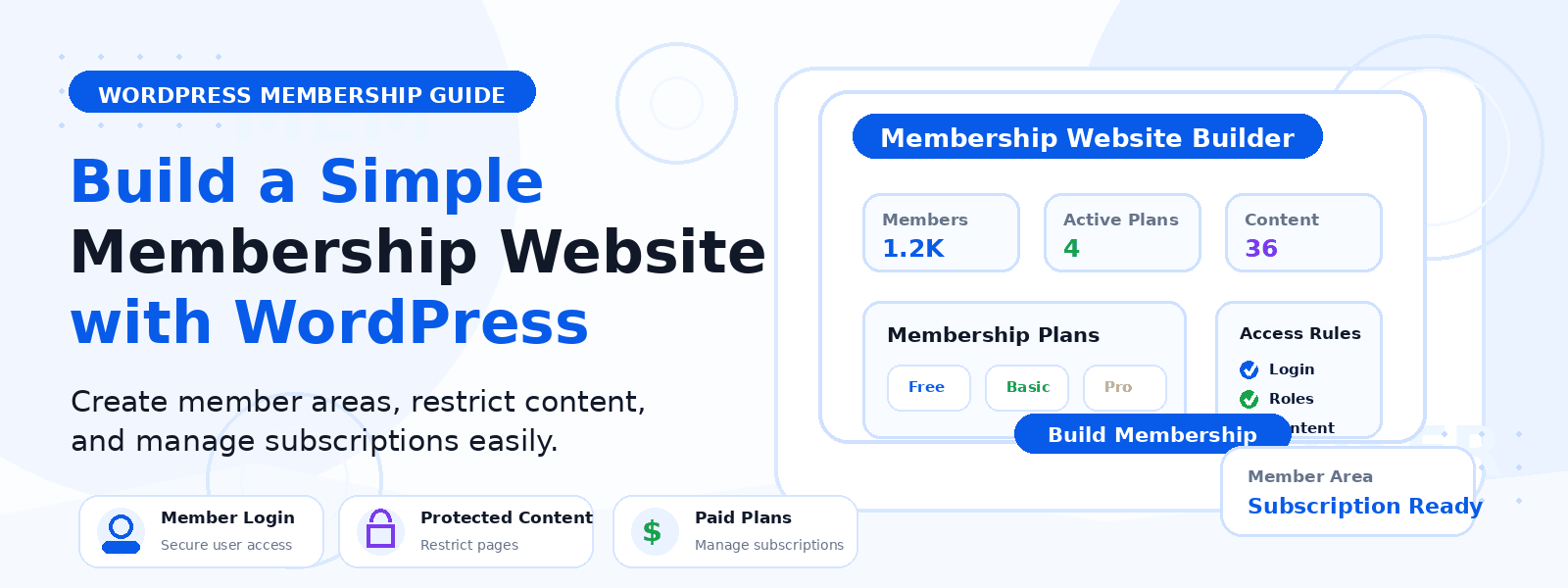
A membership site allows you to create exclusive, gated content that only registered members can access — whether that’s premium articles, online courses, downloadable resources, a private community forum, or any combination of these. WordPress, combined with the right plugins, makes it surprisingly straightforward to build a fully functional basic membership site without writing a single line of code.
In this step-by-step guide, we’ll walk you through everything you need to create a basic membership site using WordPress — from choosing the right membership plugin to setting up your content tiers and managing your members.
Why Build a Membership Site on WordPress?
WordPress powers over 43% of all websites on the internet, and it has a mature, well-supported ecosystem of membership plugins that can transform any WordPress site into a full-featured membership platform. Building on WordPress means you own your platform completely — there are no monthly platform fees, no restrictions on the types of content you can offer, and no revenue share with a third-party platform. You also benefit from WordPress’s enormous library of themes, plugins, and developer resources.
Step 1: Choose Your Membership Model
Before installing any plugins, decide what type of membership model you want to run. Common options include:
- Free membership — Users register for free to access gated content, helping you build an email list and community.
- Single-tier paid membership — One membership level at a fixed monthly or annual price.
- Multi-tier membership — Multiple membership levels (e.g., Basic, Pro, Premium) with different content access at different price points.
- Course-based membership — Members pay for access to structured online courses with lessons and quizzes.
- Community membership — Access to a private forum, discussion community, or group coaching program.
Step 2: Choose a Membership Plugin
Several excellent membership plugins are available for WordPress. Popular free and freemium options include MemberPress, Paid Memberships Pro, Restrict Content Pro, and WooCommerce Memberships. For a basic membership site, Paid Memberships Pro offers a comprehensive free tier that handles membership levels, content restriction, user registration, and payment processing through PayPal. Choose a plugin that matches your membership model and technical comfort level.
Step 3: Install and Configure Your Membership Plugin
After installing your chosen membership plugin, you’ll need to configure it by creating your membership levels (with pricing and billing frequency), setting up your payment gateway (PayPal, Stripe, or manual payments for free memberships), and customizing the registration, login, and account pages that the plugin automatically creates. Most membership plugins create these essential pages automatically during setup.
Step 4: Restrict Your Content
The core function of any membership plugin is content restriction — controlling which pages, posts, or sections of your site are visible to which membership levels. Go through your existing and planned content and assign access rules: which posts require membership, which membership levels can access what, and what non-members see when they encounter restricted content (typically a message inviting them to join, with a link to the registration page).
Step 5: Create a Compelling Registration Page
Your registration or sign-up page is where visitors become members. Make it clear, persuasive, and focused on the value members receive. Include a concise description of what’s included in each membership tier, any special introductory offers, testimonials from existing members if available, and a straightforward registration form. Remove unnecessary distractions from this page — header navigation, sidebar widgets, and footer links — to keep visitors focused on completing their registration.
Step 6: Set Up Email Notifications
Configure automated email notifications for key membership events: new member welcome emails, payment receipts, membership renewal reminders, and cancellation confirmations. A warm, well-written welcome email that arrives immediately after someone joins sets a positive tone for the membership experience and reduces early cancellations. Most membership plugins include built-in email notification templates that you can customize with your brand voice.
Step 7: Test Your Membership Site Before Launch
Before opening your membership site to the public, thoroughly test the entire member journey yourself. Create a test account, go through the registration process, attempt to access restricted content as both a member and a non-member, test the payment flow with a test credit card or PayPal sandbox account, and verify that all email notifications are delivered correctly. Test on both desktop and mobile devices to catch any layout or usability issues.
Conclusion
Building a basic membership site with WordPress is more accessible than ever, thanks to mature, well-documented membership plugins that handle the technical complexity for you. By following the steps above — choosing your model, selecting the right plugin, restricting content thoughtfully, and creating a compelling registration experience — you can launch a functional membership site that generates recurring revenue and builds a loyal community around your content.