
For small business owners, a WordPress website is often the backbone of their digital presence — handling everything from customer inquiries and online sales to content marketing and reputation building. A site outage, database corruption, or security breach can mean lost revenue, damaged credibility, and potentially days or weeks of recovery work. Regular, reliable backups are your primary defense against these scenarios.
In this comprehensive guide, we’ll cover WordPress backup best practices specifically tailored for small business owners — what to back up, how often, where to store backups, and how to verify that your backups are actually restorable when you need them.
Why Small Businesses Need a Backup Strategy
Many small business website owners assume their web host handles backups automatically — and while some do, hosting provider backups are rarely sufficient as a sole backup strategy. Hosting backups may only be retained for a few days, may not be available immediately during an emergency, or may not cover all your site’s files and database. A dedicated backup strategy that you control independently of your hosting provider is an essential safety net for any serious business website.
What Needs to Be Backed Up?
A complete WordPress backup consists of two components that must both be backed up together to allow full site restoration:
- WordPress files: This includes the WordPress core files, your active theme and all installed themes, all installed plugins, and your uploads folder (images, documents, and other media you’ve added to your site). The uploads folder in particular can grow very large over time and is critical to back up since it contains all your visual content.
- WordPress database: Your database contains all your posts, pages, comments, user accounts, settings, plugin configurations, and WooCommerce orders. Without a current database backup, you’d lose all your content even if you could restore the files.
How Often Should You Back Up?
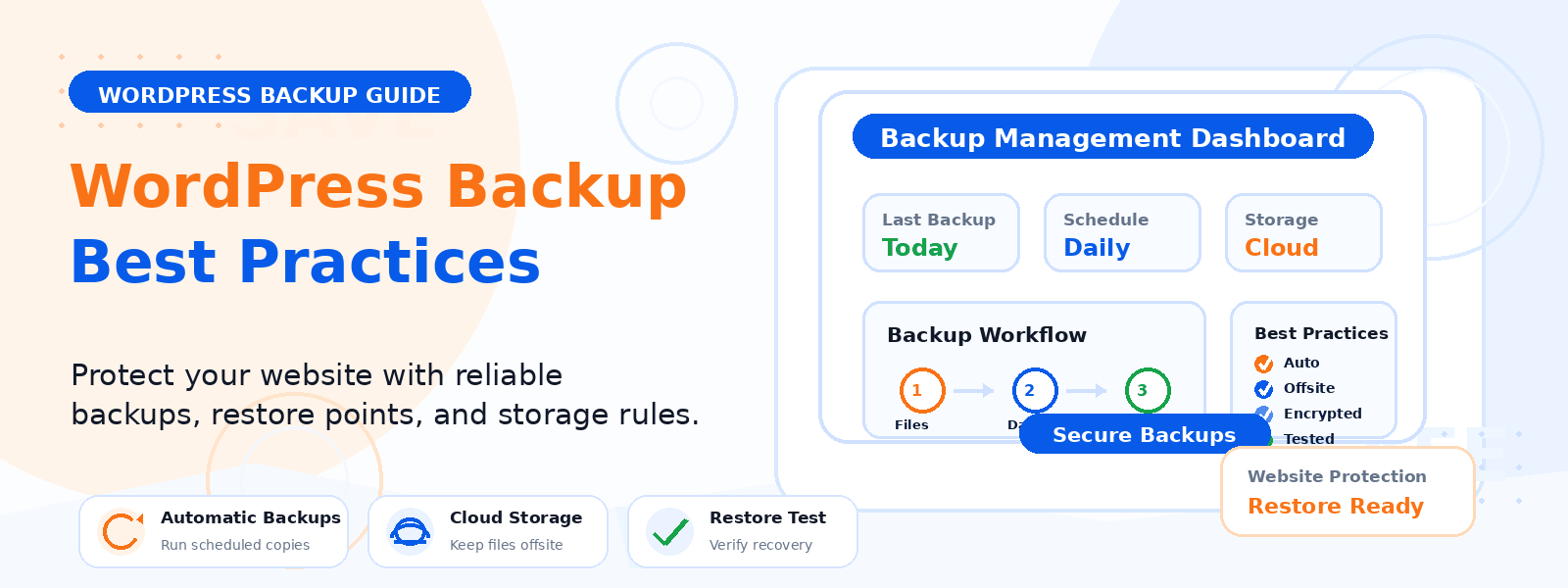
Backup frequency should match how often your site’s content and data changes. As a general guideline: daily backups are appropriate for active blogs, eCommerce stores processing multiple orders per day, and sites with regular user-generated content; weekly backups may be sufficient for smaller informational sites that are updated a few times per week; and real-time or continuous backups are worth considering for high-traffic eCommerce sites where orders, inventory, and customer data change constantly.
Where to Store Your Backups
The backup storage location is as important as the backup itself. Never store your only backup on the same server as your WordPress site — if the server fails or is compromised, you lose both your site and your backup simultaneously. Use remote storage for all backups. Popular options include: cloud storage services like Google Drive, Dropbox, or Amazon S3; a separate hosting account from a different provider; and local storage on an external hard drive or NAS device as a secondary copy. Aim for at least two independent backup copies stored in different locations — this is sometimes called the “3-2-1 backup rule” (3 copies, 2 different storage types, 1 offsite).
Recommended Backup Plugins for WordPress
Several excellent WordPress backup plugins automate the entire backup process — scheduling, file and database packaging, and remote storage upload — without requiring manual intervention once configured. Popular options include UpdraftPlus (free tier available, supports Google Drive, Dropbox, Amazon S3, and more), BackWPup (free, supports multiple remote storage destinations), and Jetpack Backup (automated real-time backups with one-click restore). Configure your chosen plugin with an appropriate backup schedule and remote storage destination as soon as your site is set up.
Testing Your Backups
A backup that can’t be restored is worthless. Many website owners discover during an actual emergency that their backups are incomplete, corrupted, or stored in a format that can’t be easily restored. Set a calendar reminder to test your backup restoration process at least twice per year. The easiest way to do this is to restore a backup to a staging or development environment and verify that the site loads correctly with all content, settings, and functionality intact.
What to Do After a Site Emergency
If your WordPress site is ever hacked, crashes, or loses data, having a tested backup allows you to recover quickly. Most WordPress backup plugins include a one-click restore feature that can get your site back online within minutes. After restoring, take time to investigate what caused the incident — update all plugins and themes, change all passwords, install a security plugin, and address any vulnerabilities that may have contributed to the problem.
Conclusion
For small business owners, a reliable WordPress backup strategy is not optional — it’s a fundamental business protection measure. The cost of setting up and maintaining an automated backup system is minimal compared to the potential cost of recovering a site from scratch after a major failure. Implement daily automated backups, store them remotely, test them regularly, and you’ll have the confidence of knowing your business’s digital presence is protected against almost any scenario.