
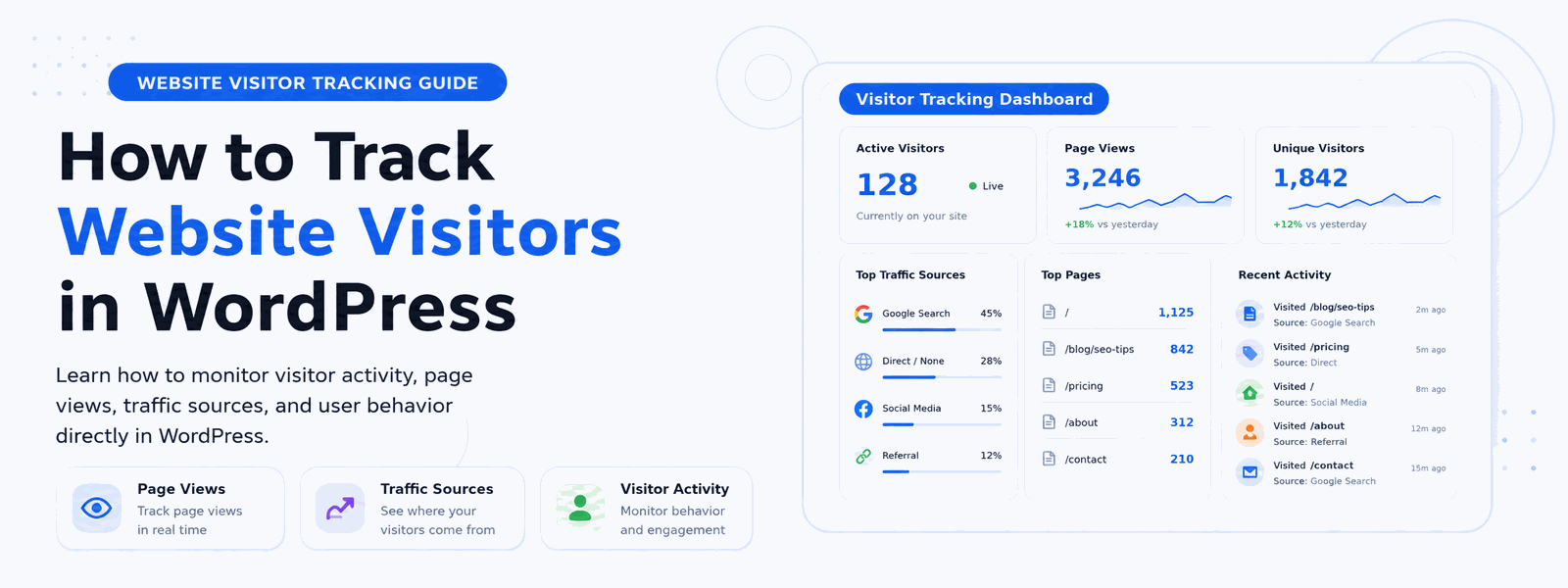
Understanding your website traffic is fundamental to online success. This guide explains exactly how to track website visitors in WordPress — from choosing the right plugin to reading your analytics reports and turning data into actionable improvements. Whether you’ve never set up analytics before or want to switch to a simpler self-hosted solution, this guide covers everything you need to know.
Why Tracking Website Visitors Is Important
Every visit to your website generates valuable data. By tracking visitors, you learn which content attracts the most traffic, which marketing channels bring the best-quality visitors, where users drop off in your sales funnel, and which pages perform well versus which need improvement. These insights are the foundation of any data-driven growth strategy. Without visitor tracking, you’re left guessing about your audience — and guessing is an expensive way to run a website.
Methods to Track Website Visitors in WordPress
There are two main approaches to visitor tracking in WordPress. The first is using a dedicated WordPress tracking plugin that stores data directly in your database. The second is integrating third-party analytics services like Google Analytics or Matomo. Both approaches have merit, but WordPress plugins offer distinct advantages: they’re simpler to set up, keep all data on your own server for privacy compliance, show analytics directly in your WordPress dashboard, and don’t require visitors’ data to be sent to external servers. For most WordPress websites, a dedicated plugin is the faster, cleaner solution.
What Data Should You Track?
When setting up visitor tracking on your WordPress site, focus on collecting the data that will actually influence your decisions. Essential data points include: total visits and unique visitor counts, page views broken down by individual page, traffic source data showing where visitors come from, device and browser information, geographic data showing visitor locations, bounce rate and average session duration, and the entry and exit pages in your visitors’ journeys. Together, these metrics give you a comprehensive picture of your audience’s behavior.
Step-by-Step: How to Track Visitors with Codersly Visitor Tracker
- Go to your WordPress dashboard → Plugins → Add New and search for “Codersly Visitor Tracker”, or download directly from codersly.com
- Install and activate the plugin — no external account or API key required
- Navigate to the Visitors Tracker section in your WordPress admin menu to access your analytics dashboard
- View real-time visitor data including current sessions, recent page views, and live traffic information
- Filter historical data by date range, country, device type, or traffic source to drill into specific segments
- Use the top pages report to identify your most visited content and traffic drivers
- Review traffic source reports to understand which channels bring the most visitors
Understanding Your Visitor Data Reports
The Codersly Visitor Tracker dashboard presents your analytics in a clean, easy-to-read interface without the complexity of enterprise-grade tools. You’ll see sessions and page views trending over time, bounce rate patterns that reveal engagement levels, average session duration to gauge content quality, traffic source breakdowns distinguishing search, social, direct, and referral visits, and geographic data showing where your audience is located. Use this data to identify content that resonates with your audience, discover which traffic channels are most effective, and pinpoint pages that need improvement.
Reading Analytics to Make Better Decisions
Visitor data is only valuable when it leads to action. Here are some practical ways to use your tracking data to improve your website. If a particular blog post consistently drives high traffic, write more content on similar topics. If a page has a high bounce rate, improve its content, load speed, or visual design. If most visitors come from a specific traffic source, invest more effort in that channel. If visitors consistently exit your site from the same page, investigate what’s causing them to leave and make improvements.
Real-Time Tracking: Know What’s Happening Right Now
One of the most useful features of a good WordPress visitor tracking plugin is real-time data. Seeing live visitor activity on your site is particularly valuable when you’ve just published new content, launched a campaign, or shared something on social media. Real-time tracking lets you see immediately how your audience is responding and make quick adjustments if needed.
Conclusion
Tracking website visitors in WordPress is easy with Codersly Visitor Tracker. Install it today and start making data-driven decisions for your website. Every insight you gain from your visitor data is an opportunity to make your website more effective, more engaging, and more successful.