
Why WordPress Security Matters
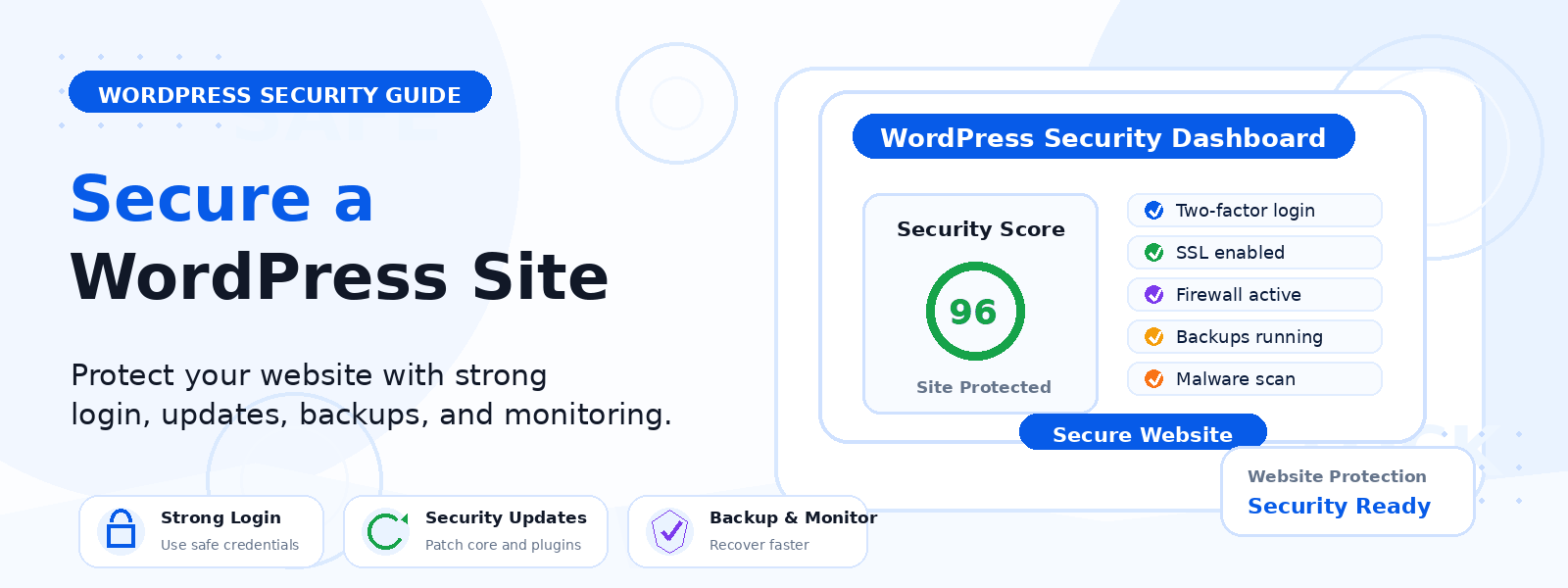
If you run a WordPress website, security is not something to postpone. A weak login, outdated plugin, or missing backup can turn a small issue into a much bigger problem. The good news is that you can improve your site’s protection quickly, even if you are a beginner.
This guide walks you through practical steps to secure a WordPress site in about 30 minutes. The goal is not to make your site perfect in one sitting. Instead, you will handle the most important security basics first, so your website is safer right away.
If you use premium WordPress themes or plugins from Codersly, keeping your website secure also helps protect your investment, content, and customer experience. A faster, cleaner, and better-protected site is easier to manage and grow.
What You Need Before You Start
Before making changes, sign in to your WordPress dashboard and make sure you can access your hosting account, admin email, and any security or backup tools already installed. If you are unsure where to begin, focus on the essentials below.
- Your WordPress admin login
- Access to updates for themes and plugins
- A backup tool or hosting backup option
- A strong password manager, if possible
These basic items will help you move through the checklist quickly and avoid mistakes.
Step 1: Update WordPress, Themes, and Plugins
Outdated software is one of the most common security risks on WordPress sites. Hackers often target known vulnerabilities in old versions of plugins, themes, and WordPress core itself.
What to update first
- WordPress core
- All active plugins
- Your active theme
Go to the dashboard and check for available updates. Install them one by one if needed, and only keep plugins you actually use. If you have unused themes or plugins, remove them instead of leaving them inactive.
Tip: If you rely on premium tools, keep them updated from the original source to ensure you receive compatibility fixes and security improvements.
Step 2: Back Up Your Site
A backup is your safety net. If something breaks during an update or if your site gets compromised, a recent backup makes recovery much easier.
Quick backup checklist
- Back up your database
- Back up your files
- Store the backup in a separate location
- Confirm the backup can be restored
If your hosting provider includes automatic backups, check that they are enabled. If not, use a trusted backup plugin or your hosting control panel. Even a single recent backup is better than none.
Step 3: Strengthen Your Login Security
Login pages are frequent targets for brute-force attacks. That means attackers try repeated username and password combinations until they gain access. You can reduce this risk quickly.
Simple login protections
- Use a long, unique password
- Avoid common usernames like “admin”
- Enable two-factor authentication if available
- Limit login attempts with a security plugin
If your site uses multiple admin accounts, review them and remove any users who no longer need access. For small sites, the fewer privileged accounts you have, the better.
Step 4: Remove Anything You Don’t Need
Every extra plugin, theme, or user account can increase your risk. A lean WordPress site is easier to secure and maintain.
What to clean up now
- Inactive plugins you do not plan to use
- Unused themes
- Old admin accounts
- Spam comments or suspicious content
If you installed demo content, trial tools, or temporary add-ons during setup, remove them when they are no longer needed. This is especially useful on sites built with premium themes or plugin bundles, where testing often leaves extra files behind.
Step 5: Add a Security Plugin or Firewall
A good security plugin can block common threats, scan for suspicious files, and add useful protections like login limits and firewall rules. For beginners, this is one of the easiest ways to improve security quickly.
Look for features such as:
- Firewall protection
- Malware scanning
- Login attempt limits
- Activity logging
- File integrity checks
You do not need every feature at once. Start with a plugin that is reliable, actively maintained, and compatible with your WordPress setup.
Step 6: Use Safer User and File Settings
Some small configuration changes can reduce your exposure to attacks. These steps do not take long, but they can make a real difference.
Quick settings to review
- Assign the correct user roles
- Keep administrator access limited
- Disable file editing in the dashboard if possible
- Check that file permissions are not overly open
If you are not comfortable editing configuration files, ask your host or developer for help. The main goal is to avoid giving unnecessary access to files or admin tools.
Step 7: Protect Your Website Content and Forms
Security is not only about preventing logins. It also includes protecting contact forms, downloads, and content submission points. If your website uses forms, make sure spam filtering is enabled.
Helpful protections for form-heavy sites
- Enable spam protection or CAPTCHA
- Review form notifications
- Limit file uploads when possible
- Monitor unusual form submissions
For ecommerce or marketplace sites, protecting customer-facing forms is especially important because user trust depends on a secure experience.
A Simple 30-Minute WordPress Security Plan
If you want to move fast, here is a simple order you can follow:
- Update WordPress, your theme, and plugins.
- Create or confirm a backup.
- Change weak passwords and review admin users.
- Remove unused themes and plugins.
- Install or configure a security plugin.
- Check key user and file settings.
That sequence covers the biggest risks first and gives you immediate protection without overwhelming setup work.
Common Mistakes to Avoid
Beginners often make a few avoidable mistakes when trying to secure a WordPress site quickly. Keep these in mind while you work:
- Using the same password everywhere
- Ignoring plugin or theme updates
- Leaving old admin accounts active
- Installing too many security tools at once
- Skipping backups before major changes
It is better to complete a few important steps well than to install multiple tools you do not understand.
What to Do After the First 30 Minutes
Once the basics are in place, continue improving security over time. Review updates regularly, keep backups current, and check your site’s logs or alerts if your tools provide them.
You may also want to schedule a monthly maintenance routine that includes plugin audits, backup checks, and login reviews. This keeps your WordPress site healthy and lowers the chance of surprise issues later.
Final Thoughts
You do not need to be an expert to secure a WordPress site. By handling updates, backups, logins, cleanup, and basic protection tools, you can dramatically improve your site’s safety in a short time.
For site owners who work with premium WordPress themes, plugins, or bundles, this simple security routine helps protect both performance and peace of mind. Start with the essentials today, then build better habits as your site grows.
If you need more WordPress resources, visit Codersly for premium WordPress themes and plugins, or contact us if you have questions about our products.