
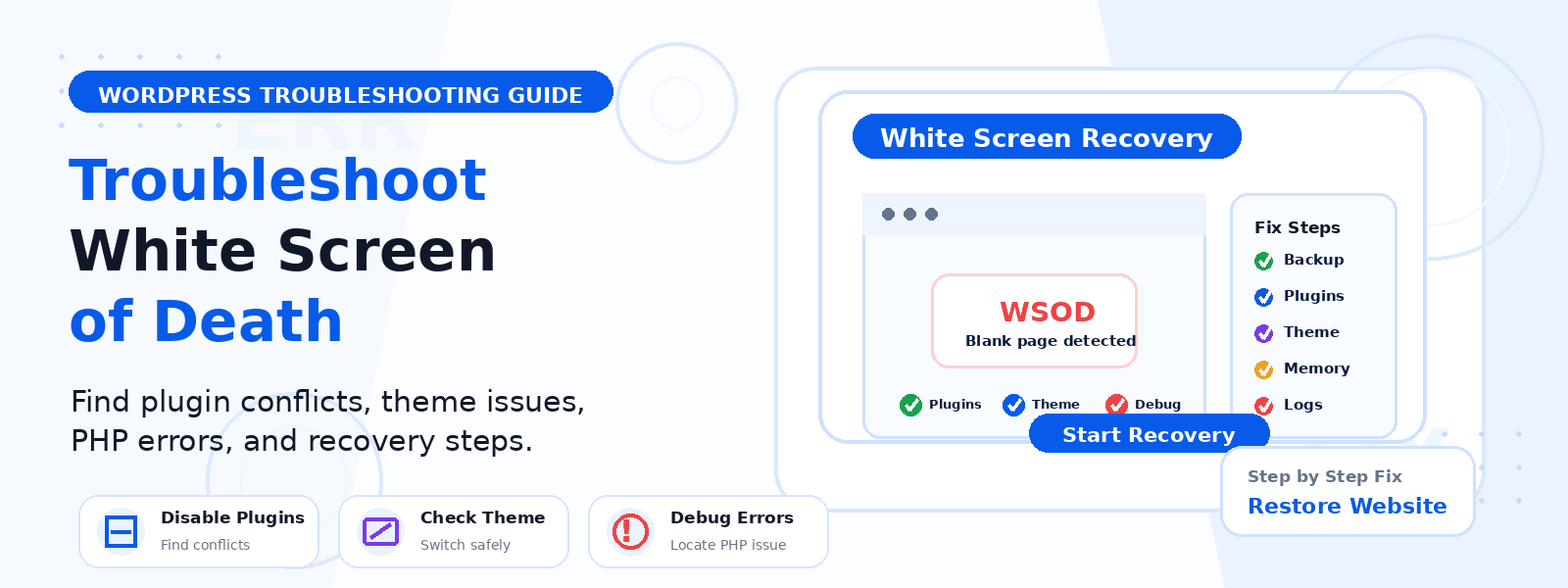
The White Screen of Death (WSOD) is one of the most alarming errors WordPress users can encounter — you load your website (or your admin dashboard) and instead of your content, you’re confronted with a completely blank white page with no error message, no explanation, and seemingly no way forward. The good news is that this error, while frightening, is almost always resolvable — often without professional help.
In this guide, we’ll walk through the most common causes of the WordPress White Screen of Death and the step-by-step process for diagnosing and fixing it.
What Causes the White Screen of Death?
The WSOD typically occurs when a PHP error, a memory limit issue, or a plugin/theme conflict causes WordPress to fail silently without displaying an error message. Common triggers include a recently activated or updated plugin that contains a PHP error, a theme that has a compatibility issue with your current version of WordPress or PHP, hitting your server’s PHP memory limit (especially on shared hosting), a corrupted WordPress core file, or a database connection error in specific circumstances.
Step 1: Enable WordPress Debug Mode
The first step in diagnosing the WSOD is to enable WordPress debug mode, which forces WordPress to display error messages instead of a blank page. Access your site’s files via FTP or your hosting control panel’s File Manager, navigate to the root of your WordPress installation, and open the wp-config.php file. Find the line that reads define(‘WP_DEBUG’, false); and change it to define(‘WP_DEBUG’, true);. Save the file and reload your site — you should now see a specific error message that points to the file and line causing the problem.
Step 2: Deactivate All Plugins
If enabling debug mode doesn’t provide a clear error (or if you can’t access the admin dashboard), the next step is to deactivate all plugins. Since you can’t access the dashboard during a WSOD, you’ll need to do this via FTP or File Manager. Navigate to wp-content/plugins/ and rename the plugins folder to something like plugins_old. This effectively deactivates all plugins at once. Reload your site — if it recovers, a plugin was the cause. Rename the folder back to plugins, then activate plugins one by one through the dashboard, reloading after each activation to identify the specific plugin causing the issue.
Step 3: Switch to a Default WordPress Theme
If deactivating all plugins doesn’t resolve the WSOD, your active theme may be the culprit. Via FTP or File Manager, navigate to wp-content/themes/ and rename your active theme’s folder. WordPress will automatically fall back to its default theme (Twenty Twenty-Four or another bundled theme). If your site loads correctly after this, your theme was causing the error. Contact the theme developer for a fix or consider switching themes.
Step 4: Increase PHP Memory Limit
Many WSOD instances are caused by WordPress hitting the PHP memory limit — especially after installing a new, memory-intensive plugin. You can increase the memory limit by adding define(‘WP_MEMORY_LIMIT’, ‘256M’); to your wp-config.php file, or by adding php_value memory_limit 256M to your .htaccess file. Alternatively, contact your hosting provider and ask them to increase the PHP memory limit through their server configuration panel.
Step 5: Check for WordPress Core File Corruption
If the above steps don’t resolve the issue, your WordPress core files may be corrupted. Download a fresh copy of WordPress from WordPress.org, extract it, and use FTP to overwrite the wp-admin and wp-includes folders (do not overwrite wp-content, which contains your themes, plugins, and uploads). This replaces any corrupted core files without affecting your site’s content or customizations.
Step 6: Check Your Hosting Error Logs
If you still can’t identify the cause, check your server error logs through your hosting control panel (cPanel, Plesk, or similar). The error log will typically contain PHP Fatal Error messages that pinpoint exactly which file and function is causing the crash — often providing clearer information than WordPress’s own debug output.
Preventing the White Screen of Death
You can significantly reduce the risk of future WSOD occurrences by always testing plugin and theme updates on a staging site before applying them to your live website, keeping a recent backup so you can roll back quickly if an update causes problems, monitoring your server’s PHP memory usage, and keeping all plugins and themes updated to maintain PHP version compatibility.
Conclusion
The WordPress White Screen of Death is a solvable problem with a clear diagnostic process. By methodically working through plugin deactivation, theme switching, memory limit increases, and core file replacement, you can identify and resolve the cause in most cases without professional assistance. The key is not to panic — take a systematic approach, work through each step, and you’ll have your site back online quickly.