
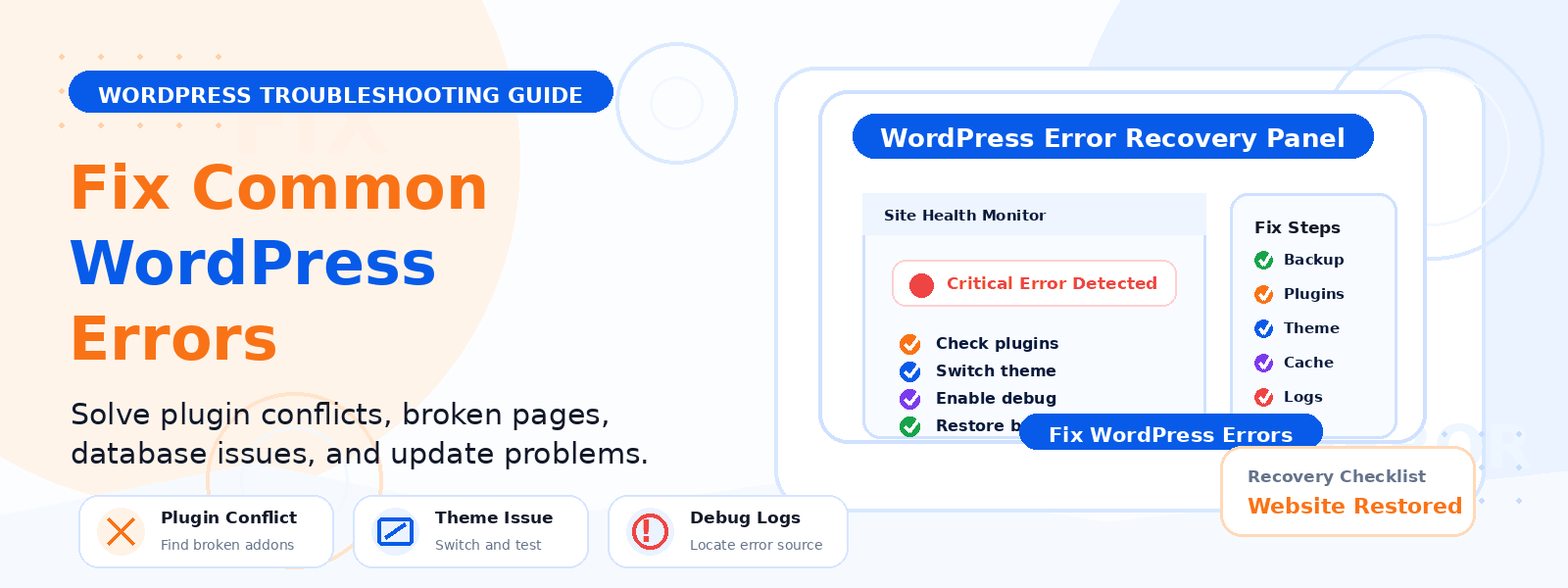
WordPress is powerful, but even a well-built site can run into problems. A plugin conflict, a bad theme update, or a small configuration issue can cause errors that look serious at first glance. The good news is that many common WordPress errors can be fixed without hiring a developer.
If you run a WordPress site, especially with premium themes and plugins, it helps to know a few basic troubleshooting steps. In many cases, you can identify the issue, recover your site, and avoid extra cost by following a careful process.
Why WordPress errors happen
Most WordPress issues come from a small group of causes:
- Plugin conflicts
- Theme compatibility problems
- Outdated WordPress core files
- Incorrect file permissions
- Server resource limits
- Broken code added through custom snippets or third-party tools
Knowing the cause is half the battle. Once you understand where the problem likely started, you can fix it much faster.
Always start with these safe steps
Before making changes, protect your site and avoid losing data.
1. Back up your site
Create a full backup of your files and database. If anything goes wrong during troubleshooting, you can restore the site quickly.
2. Clear your cache
Sometimes the issue is not the site itself, but cached content. Clear your browser cache, plugin cache, and hosting cache if available.
3. Note the exact error message
Write down what you see. A “critical error” is different from a “database connection error,” and each one points to a different fix.
How to fix the most common WordPress errors
1. The White Screen of Death
The White Screen of Death usually means WordPress is failing to load properly. This often happens because of a plugin or theme issue.
Try this:
- Deactivate all plugins by renaming the plugins folder through File Manager or FTP.
- Check whether the site loads.
- If it does, reactivate plugins one by one to find the problem plugin.
- Switch to a default WordPress theme temporarily to test theme compatibility.
If the problem started after installing a new plugin or theme from a premium source, that is usually the first place to look.
2. Internal Server Error
An Internal Server Error is broad, which makes it frustrating. It often points to a corrupted .htaccess file, plugin conflict, or server limit issue.
Try this:
- Rename the .htaccess file and refresh your site.
- Go to Settings > Permalinks and save changes to generate a new .htaccess file.
- Deactivate plugins to rule out conflicts.
- Increase PHP memory if your hosting allows it.
If the site returns after resetting permalinks, the issue was likely configuration-related rather than a deep code problem.
3. Error Establishing a Database Connection
This error means WordPress cannot connect to the database. The cause may be incorrect login details, database corruption, or hosting downtime.
Try this:
- Check the database name, username, password, and host in your wp-config.php file.
- Confirm your hosting service is online.
- Use your hosting panel to repair the database if the feature is available.
Because the database stores all your content, this issue should be handled carefully. Avoid making random edits unless you know what each setting does.
4. Critical Error on the Website
A critical error usually appears when WordPress detects a fatal PHP issue. This is commonly caused by a plugin, theme, or outdated PHP version.
Try this:
- Check the recovery email sent by WordPress, if available.
- Deactivate recently added plugins.
- Switch to a default theme.
- Update PHP to a supported version in your hosting dashboard.
When you identify the plugin causing the issue, replace it with a more compatible option or update it to the latest stable version.
5. Login Page Redirect Loop
If you cannot log in because the login page keeps redirecting, the issue may be related to cookies, plugin conflicts, or URL settings.
Try this:
- Clear your browser cookies and cache.
- Check the WordPress Address and Site Address under Settings > General.
- Deactivate caching or security plugins temporarily.
This is a common issue after a migration, SSL change, or plugin update.
6. 404 Errors on Posts or Pages
If your pages suddenly show 404 errors, the content may still exist, but WordPress is struggling to route the URLs correctly.
Try this:
- Go to Settings > Permalinks.
- Click Save Changes without editing anything.
- Check whether the URLs load again.
This simple step often resolves permalink-related problems.
7. Plugin or Theme Update Problems
Sometimes an update causes layout issues, missing features, or complete errors. This can happen when a theme or plugin is not fully compatible with your current WordPress version or PHP version.
Try this:
- Rollback to the previous version if you have a backup.
- Disable the updated plugin or theme.
- Review the changelog and compatibility notes before updating again.
For store owners and site managers, it is smart to test major updates on a staging site before applying them to live traffic.
How to troubleshoot WordPress errors step by step
When you do not know what is wrong, use a simple process instead of guessing.
- Identify the exact error message.
- Back up the site before changing anything.
- Disable plugins one at a time or all at once for testing.
- Switch to a default theme if needed.
- Check recent updates, code changes, or new installations.
- Review hosting limits, PHP version, and server status.
- Restore from backup if a change makes things worse.
This method helps you isolate the issue without making the situation more complicated.
When you may still need a developer
Many WordPress errors are manageable on your own, but some situations are more advanced. You may need professional help if the issue involves custom code, a damaged database, malware, or repeated failures after basic troubleshooting.
You may also need support if your website is mission-critical and downtime is affecting sales, leads, or customer access.
How to prevent common WordPress errors
Prevention is easier than recovery. A few habits can reduce the chances of future issues:
- Use trusted themes and plugins with good update records
- Keep WordPress, themes, and plugins updated
- Remove unused plugins and themes
- Use staging before major updates
- Back up regularly
- Choose hosting with reliable support and enough resources
If you rely on premium WordPress tools, compatibility and update quality matter. Well-maintained products are less likely to break your site after changes.
Final thoughts
You do not always need a developer to fix WordPress errors. With a backup, a calm troubleshooting process, and a few practical checks, you can solve many common problems on your own.
Start with the simplest fixes first, test one change at a time, and keep your site maintained so small issues do not become major ones. If you are building with premium WordPress themes or plugins, choosing reliable products can also save time and prevent future headaches.
For more WordPress resources and premium tools, explore Codersly and keep your site running smoothly.
Useful internal links: Codersly homepage and Contact page